To make a Discord timestamp: choose the source timezone, enter its local date and time, select a format, then copy and paste the code as normal message text. Discord shows the same moment in each reader’s local time. No bot or manual Unix calculation is needed.
You have an event at 8:30 PM in Shanghai on 10 October 2026. A message that says “Saturday at 8:30” leaves your international members doing their own conversions. A Discord timestamp stores the actual moment and lets Discord display a local date and time for each reader.
1. Choose the organizer’s timezone
Open the generator, select Asia/Shanghai, then set the event date to 10 October 2026 and the time to 20:30. Choose the timezone before editing the date and time: changing the source timezone preserves the current instant and updates the fields to match.
This event becomes Unix second 1791635400. There is no timezone abbreviation inside the final code. It is the conversion from your chosen local time to Unix seconds that makes the result correct.
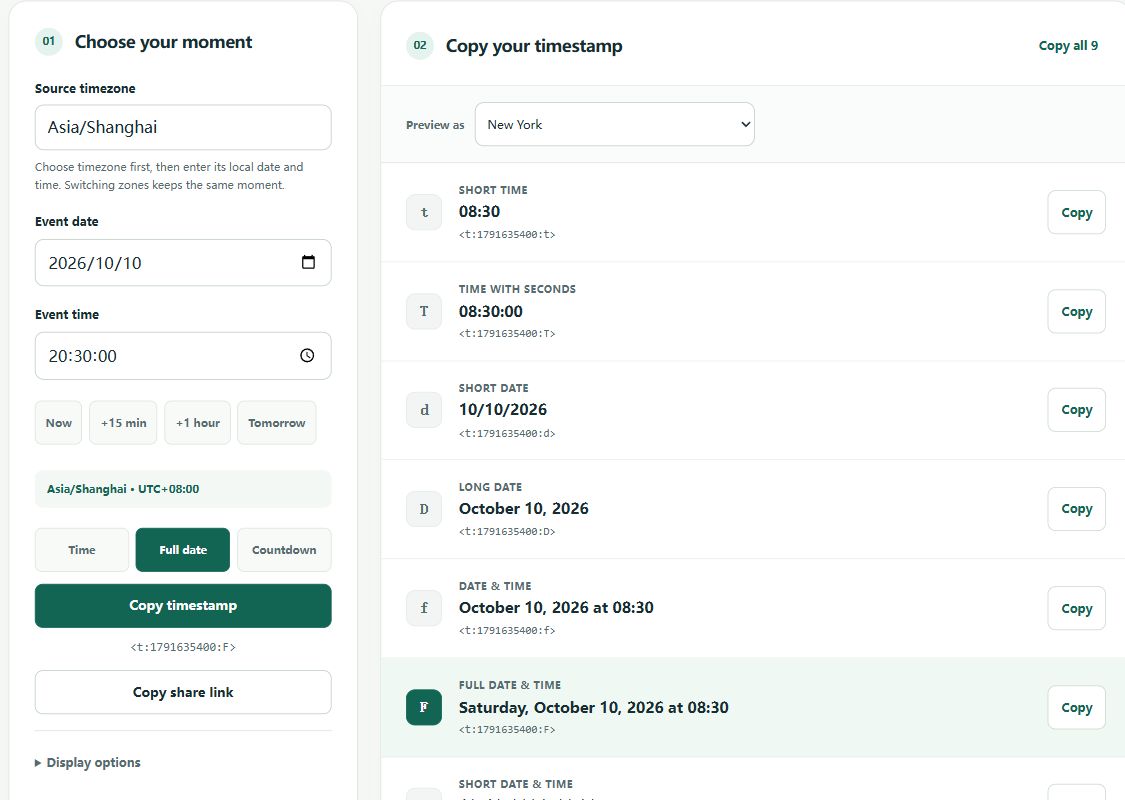
2. Choose a useful format
Copy F for a complete event date, including the weekday. For a reminder that reads “in 3 days,” copy R. A time-only code such as t can be ambiguous if you never mention which day the event happens.
For an announcement, use both the exact date and relative time. Enter your event name and choose Copy announcement. For example:
Community game night
Starts: <t:1791635400:F>
Countdown: <t:1791635400:R>
3. Paste as ordinary message text
Return to Discord, paste into your message, and send it. Keep the angle brackets and colons. Do not wrap the code in backticks or put it in a code block: those are for displaying literal code rather than rendering a timestamp.
On a phone, copy from this page in your browser, switch to the Discord app, and paste into the message field. If your browser refuses clipboard access, the tool opens a text box for manual copying.
“My 12 PM is your time”: copy a whole sentence
Choose Asia/Shanghai, 10 October 2026, and 12:00. The Time shortcut selects t. Use Copy time comparison on the generator to copy this sentence:
My 12:00 PM on October 10, 2026 (Asia/Shanghai) is <t:1791604800:t> for you.
For that date, the timestamp displays midnight in New York and 1 PM in Tokyo. You do not need to know the reader’s timezone: their Discord client chooses the local display. The sentence updates with your selected date, time, and source timezone. Include the date because a time-only display does not reveal which day the event happens.
4. Check the moment, not the wording
Use Preview as to compare your event in another timezone. This changes the preview without changing the copied code. The exact wording in Discord depends on the reader’s language, timezone, and clock settings, so a preview is an approximation.
Keep your shared link if you need to edit the event later. It contains the timestamp, source timezone, and selected format. It does not contain the event name. Anyone with the link can see the event time.
Profile bios and recurring times
If you want to use a timestamp in your profile, paste the code into the About Me field and check the saved profile in your current Discord client. This guide has not verified every profile field or client; do not assume display names and other fields render timestamps the same way as messages.
Even t, which shows only a clock time, stores a particular date. It is not a repeating “my noon every day” rule. Daylight saving can change the difference between two cities, so a bio using one fixed timestamp may not describe your usual schedule throughout the year. For events or availability, use a specific date and generate a new code for the next occurrence.
When Discord’s built-in option is enough
Discord introduced a desktop @time command in its February 2026 patch notes. Try it for a quick time while writing a message. If your client does not offer it, use this website in your browser and paste the generated code. The generator also gives you a named source timezone, format comparison, a raw code, or a reusable announcement.
A timestamp does not schedule the message or notify members when the event starts. For recurring events, generate a new timestamp for each occurrence. Check Discord’s timestamp reference if you are adding timestamp support to a bot.